Datasets
Add a dataset
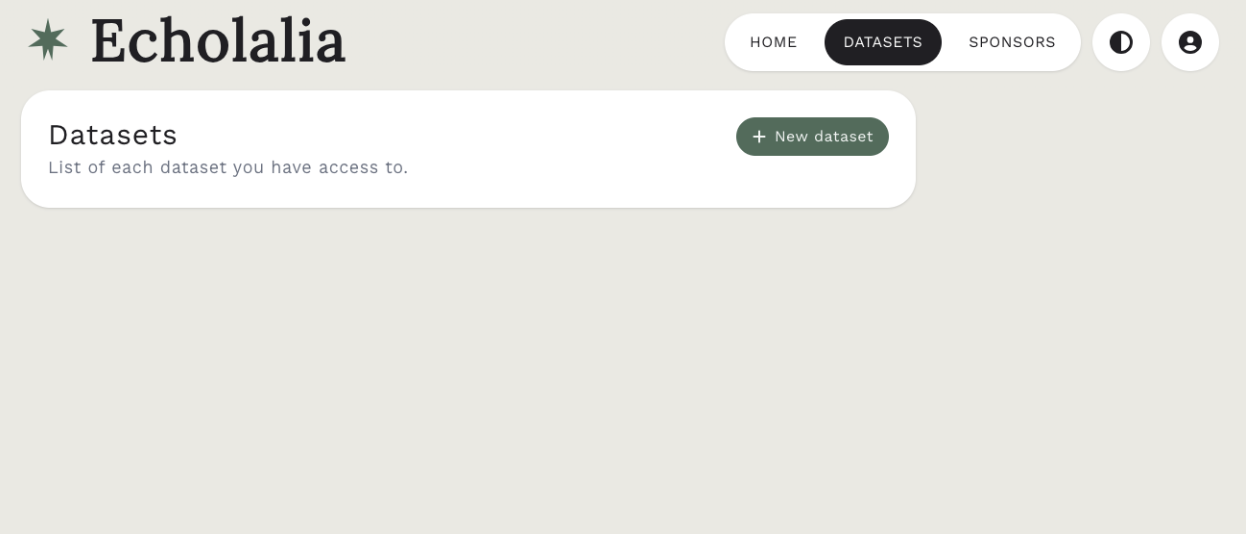
On the upper right, you’ll see HOME, DATASETS, SPONSORS. To get started with adding a dataset, click on the DATASETS button. Your screen should now appear like this (Figure 4):
Create a new dataset
To request the new creation of a dataset (which would need to be approved by an admin within 24-48 hours), click on the green button + New dataset. The screen should then appear as Figure 5.
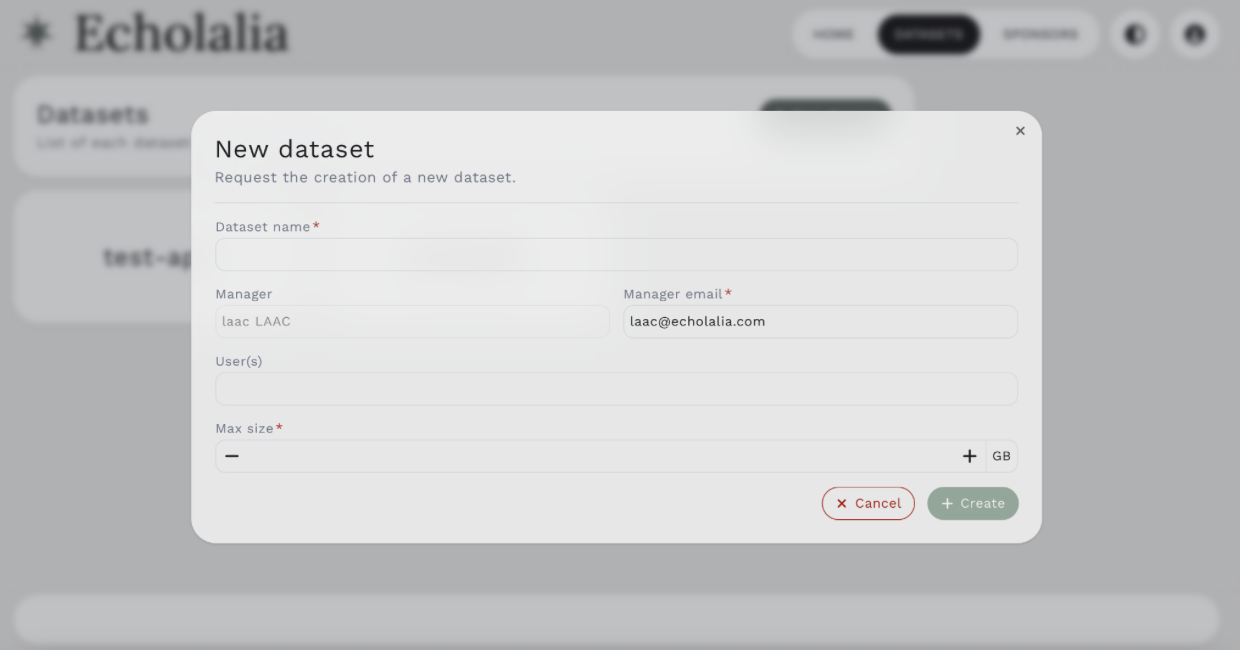
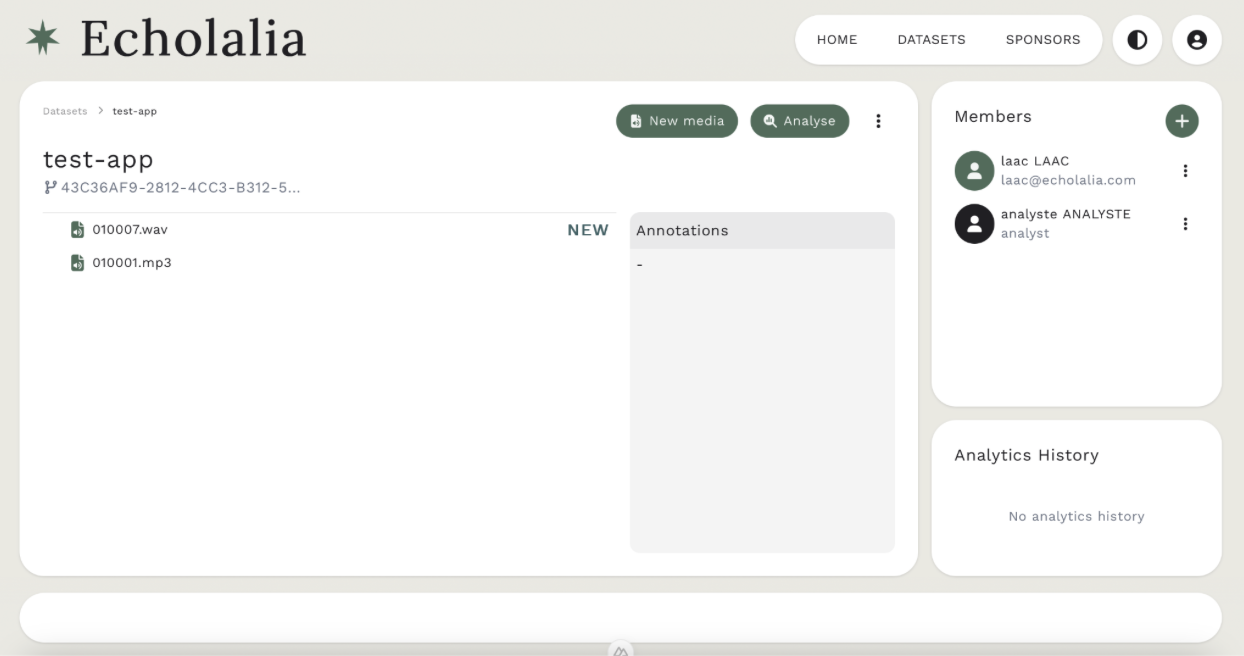
Fill in the information (i.e., Dataset name, User(s), and Max Size). Once you do this, the admin will approve it (or contact you if there are any issues within 24-48 hours). Once it’s created, it should look like Figure 6.
Add new media to dataset
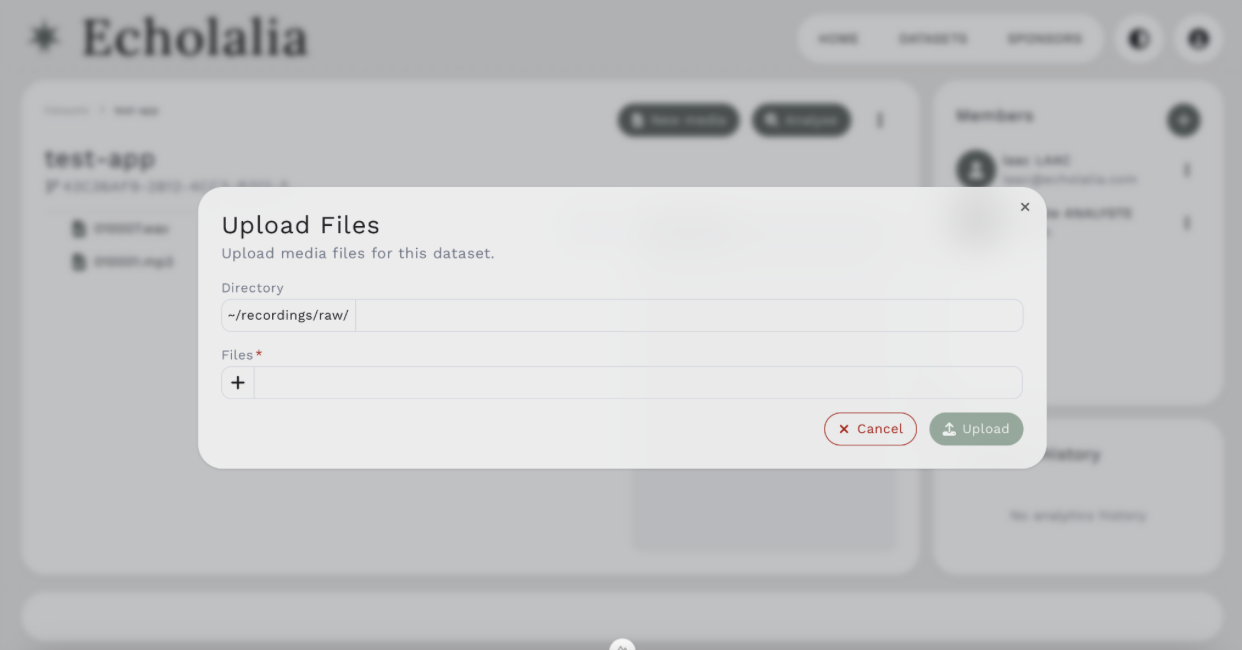
Once your dataset is approved, you can upload (individually or batched) large audio files (mp3, wav) with a maximum size of 2 GB each file. To do so, click on the New Media button to add audio files (Figure 7).